# Spectora Public API
Your direct connection to the Spectora platform. Whether you're an inspection company looking to sync your data with other tools, or a technology partner building an integration, the Spectora Public API gives you programmatic access to your inspection business data.
---
## What You Can Build
The Spectora API is designed for two primary use cases:
**Inspection companies** can connect Spectora to 3rd party tools, such as CRMs — keeping agent relationships, client records, and inspection data in sync without manual exports.
**Technology partners** can build deep integrations that extend Spectora's capabilities, embed inspection data into their own platforms, or automate workflows across the home inspection transaction lifecycle.
---
## Base URL
All API requests are made to:
```
https://connect.spectora.com
```
---
## Authentication
The Spectora API uses API key authentication. Include your key as a Bearer token in the `Authorization` header of every request:
```
Authorization: Bearer YOUR_API_KEY_HERE
```
API keys are scoped to your company and carry the permissions of your account. Keep your key secure — do not expose it in client-side code or public repositories. You can request your API key(s) [here](/settings/api-keys). You will need to have your Spectora login information available or already be logged into Spectora in the same browser.
---
## API Design
The Spectora API follows the [JSON:API specification](https://jsonapi.org/). A few conventions to be aware of:
**Terminology note:** Some internal field names and route paths use Spectora's underlying data model terminology.
- Agents associated with your company are internally referred to as Connections. You will generally use the connection id for referencing them. Agents also have an agent id and separately an agent uuid — these are ids that reference the same agent globally, which may be helpful if your organization operates more than one instance of Spectora.
- Clients associated with your company are internally typically referred to as Contacts but may be referenced as Buyers when specifically associated to inspection data. You will generally use the contact id for referencing them across various endpoints.
**Content Type Requirements:** The default content type should be set to `application/json` for all POST and PUT calls. If you are including an image as part of the POST or PUT you will need to change the body to Multipart and pass data in key value entries with the key being formatted as **data[attributes][field-name]**. For the images specifically you will use **data[attributes][image]** and include your image file as the value. Supported image file types are: .jpg, .jpeg, .png, and .gif.
**Relationships:** Related resources (such as an inspection's custom fields or buying agent) can be included in a single response using the `include` query parameter, reducing the need for multiple round trips.
**Pagination:** List endpoints return paginated results. Use `page[number]` and `page[size]` parameters to navigate result sets. Response bodies include a `meta.pagination` object and a `links` object with `first`, `prev`, `next`, and `last` page URLs.
**Partial updates:** `PUT` requests on resource endpoints are partial by default — only fields included in the request body will be modified.
---
## Rate Limiting
API requests are subject to a short-window rate limit that protects the platform from bursts. When it is exceeded, the API returns a `429 Too Many Requests` response. Build retry logic with exponential backoff into your integration to handle this gracefully.
The rate limit is separate from your monthly request quota, described below.
---
## Monthly Request Quota
Every request counts against a monthly quota determined by your account's plan. The **standard** plan includes a generous allowance at no additional cost:
| Threshold | Requests per month | Behavior |
|-----------|--------------------|----------|
| Included quota | `10,000` | Requests succeed normally |
| Over included quota | `10,001` – `15,000` | Requests still succeed, and every response carries a `Spectora-Quota-Warning` header |
| Hard limit | `15,000` | Requests are rejected with `429 Too Many Requests` until the cycle resets |
Accounts that have not been given the standard plan are on the **free** plan, which includes `500` requests per month and reaches only the read endpoints — a write request returns `403 Forbidden`. Requests `501` – `1,000` still succeed, and every response carries the `Spectora-Quota-Warning` header; past `1,000` requests are rejected until the cycle resets. Contact sales at Spectora to move to the standard plan.
Whichever plan you are on, the quota headers on every response report your own limits, so read those rather than assuming the numbers above (see below).
Only successful responses (status `200`–`399`) count toward the quota, so failed and rejected requests are not charged against your allowance. Your monthly cycle is anchored to your first API call rather than the calendar month — the exact reset time is returned on every response (see below).
If you need more than 15,000 requests per month, contact sales at Spectora for a custom API usage plan. Accounts on a custom plan are enforced at their negotiated limit and never receive the warning header.
:::tip
Webhooks do not count toward your quota. Subscribing to [webhooks](/webhook-configuration) instead of polling list endpoints is the most effective way to stay well inside your allowance.
:::
### Quota Headers
Every API response includes your current quota state:
| Header | Description |
|--------|-------------|
| `Spectora-Quota-Limit` | Your plan's included monthly allowance (`10000` on the standard plan) |
| `Spectora-Quota-Used` | Successful requests counted so far in the current cycle |
| `Spectora-Quota-Remaining` | Requests left in your included allowance — `0` once you are over it (requests keep succeeding until the enforced ceiling named in `Spectora-Quota-Warning`) |
| `Spectora-Quota-Next-Reset-Date` | When the current cycle resets and usage returns to zero |
| `Spectora-Quota-Warning` | Present only once you are over the included quota — explains that you are past your free allowance and to contact sales for a custom API usage plan |
### When the Quota Is Exhausted
At the hard limit, requests are rejected with `429 Too Many Requests` and the standard Spectora error body, with the quota headers still attached so your integration can read exactly when access resumes:
```json
{
"errors": [
{
"status": 429,
"title": "Too Many Requests",
"detail": "Monthly API request quota exceeded. Please contact sales at Spectora for a custom API usage plan."
}
]
}
```
Because both the rate limit and the quota surface as `429`, use the **presence** of the `Spectora-Quota-*` headers to tell them apart. A quota rejection carries them, and retrying will not help until `Spectora-Quota-Next-Reset-Date`. A rate-limit rejection carries **no** quota headers — retry with exponential backoff, honoring `Retry-After` when present. Do not rely on `Spectora-Quota-Remaining: 0` as the signal — it also appears on successful responses once you are over your included allowance but still under the enforced ceiling.
### Checking Your Usage in the Portal
You do not have to parse headers to see where you stand. The [API Usage](/api-usage) entry in the top-right profile menu of this portal shows your current plan, your custom quota when one applies, the requests used and remaining in the current cycle, and the date the cycle resets.
---
## HTTP Status Codes
| Code | Meaning |
|------|---------|
| `200` | Success — request completed, resource returned |
| `201` | Created — resource successfully created |
| `401` | Unauthorized — missing or invalid API key |
| `403` | Forbidden — valid key but insufficient permissions |
| `404` | Not Found — resource does not exist |
| `422` | Unprocessable Entity — validation error in request body |
| `429` | Too Many Requests — rate limit or monthly quota exceeded |
---
## Webhooks
Get near real-time notifications when a specific event occurs in Spectora with webhooks. This eliminates the need to "poll" or constantly call endpoints that eat up your call quota, all while allowing your integrated system to know when to retrieve new or updated data. Webhooks are lightweight and provide the event type and associated id necessary to include in a call to the resource you want.
### Configuring a New Webhook
1. Click `+ Add Endpoint`
2. Enter the 3rd party system's webhook URL (or click `Configure an endpoint or test with Svix Play` to test on the fly)
3. Add a description (optional)
4. Select one or more events to subscribe the webhook to
5. Click `Create`
6. The webhook is now active. If you used the Svix Play option for the URL, you may click `View in Svix Play` to see the payload sent whenever the appropriate event occurs in Spectora.
### Available Events
| Event Type | Description |
|------------|-------------|
| `inspection.created` | Fires when an inspection is created — regardless of whether or not it is confirmed |
| `inspection.confirmed` | Fires when an inspection is confirmed — regardless of whether this is at the same time as creation or later |
| `inspection.canceled` | Fires when an inspection is canceled |
| `inspection.deleted` | Fires when an inspection is deleted |
| `inspection.published` | Fires when any report is published — this does not include quick publish |
| `inspection.rescheduled` | Fires when an inspection's date and/or time is changed after it was created — regardless of whether or not it is confirmed |
| `inspection.address_updated` | Fires when an inspection's property address changes |
| `connection.created` | Fires when an agent record is created |
| `connection.updated` | Fires when an agent record is updated |
| `connection.deleted` | Fires when an agent record is deleted |
| `contact.created` | Fires when a Client record is created |
| `contact.updated` | Fires when a Client record is updated |
| `contact.deleted` | Fires when a Client record is deleted |
---
## Available Resources
### Agents
Manage the real estate agents your inspection company works with. Each agent record captures contact information, agency affiliation, tags, social profiles, and cumulative inspection statistics (buying-side, selling-side, and total). Supports filtering by agency, email, tags, and full-text search across agent and agency name fields.
[View Agents API Reference →](/api/agents)
| Method | Endpoint | Description |
|--------|----------|-------------|
| `GET` | `/v2/connections` | List agents with filtering and sorting |
| `POST` | `/v2/connections` | Create a new agent |
| `GET` | `/v2/connections/{id}` | Get a single agent by connection ID |
| `PUT` | `/v2/connections/{id}` | Update an agent by connection ID - update email is not supported |
### Agent Stats
Retrieve aggregated performance metrics for agents. Useful for building agent scorecards, referral tracking dashboards, or business intelligence reports.
[View Agent Stats API Reference →](/api/agent-stats)
| Method | Endpoint | Description |
|--------|----------|-------------|
| `GET` | `/v2/connections/stats` | List filtered agent stats by connection ID |
### Clients
Manage the homebuyer and homeowner clients associated with your inspections. Includes contact details and relationship history.
[View Clients API Reference →](/api/clients)
| Method | Endpoint | Description |
|--------|----------|-------------|
| `GET` | `/v2/contacts` | List clients with filtering and sorting |
| `POST` | `/v2/contacts` | Create a new client |
| `GET` | `/v2/contacts/{id}` | Get a single client by contact ID |
| `PUT` | `/v2/contacts/{id}` | Update a client by contact ID - update email is not supported |
### Inspection Attachments
Access and upload reports and additional documents attached to inspections.
[View Inspection Attachments API Reference →](/api/inspection-attachments)
| Method | Endpoint | Description |
|--------|----------|-------------|
| `GET` | `/v2/inspection_attachments` | List inspection attachments with filtering and sorting |
| `POST` | `/v2/inspection_attachments` | Upload an inspection attachment |
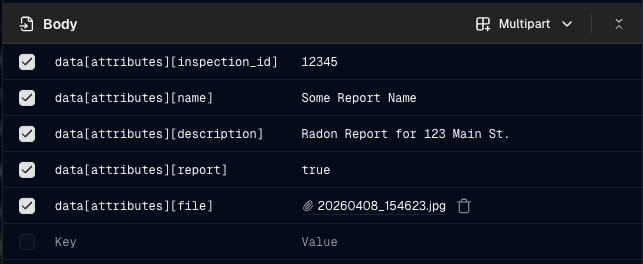
**Notes for the POST call for uploading:**
- The attribute "report" is assumed to be false if not specified. If sent as true, the attachment will show up in the Reports section of the inspection. If false, then it will show under the Additional Documents section of the inspection.
- The attribute "internal_only" defaults to false if not specified and should only be used when the "report" attribute is false. If it is specified as true and "report" is specified as false, then the attachment will be added to the inspection but will not be visible to the client/agent on the client portal unless manually changed later.
- The call must be sent with content type: multipart. Data must be passed using the key value format *data\[attributes\]\[fieldname\] : value.* For the actual file entry, use *data\[attributes\]\[file\]*.
- Below is an example of how this could look when testing in the dev portal:
### Events
Access the events on your company's schedule — radon monitor drop-offs and pickups, plus general calendar events, which may or may not be associated with an inspection. Supports filtering by inspection, inspector, event type, radon device, and start-date range, so you can retrieve a single inspection's event history or your company's schedule activity over a period.
[View Events API Reference →](/api/events)
| Method | Endpoint | Description |
|--------|----------|-------------|
| `GET` | `/v2/events` | List events with filtering and sorting |
| `GET` | `/v2/events/{id}` | Get a single event by ID |
### Inspections
Access inspection records including property details, scheduling, participants, and status. This is the core transactional object in the Spectora data model.
[View Inspections API Reference →](/api/inspections)
| Method | Endpoint | Description |
|--------|----------|-------------|
| `GET` | `/v2/inspections` | List inspections with filtering and sorting |
| `GET` | `/v2/inspections/{id}` | Get a single inspection by ID |
---
## Data Model Overview
Understanding how Spectora's data model fits together will help you build more effective integrations.
An **Inspection** is the central object. Each inspection is associated with one or more **Clients** (the buyers or homeowners) and one or two **Agents** (the buying agent and/or selling agent). Agents may belong to **Agencies**.
```
Inspection
├── Client(s)
├── Buying Agent (Connection/Agent)
└── Selling Agent (Connection/Agent)
```
The `Connection` object represents the relationship between an agent and *your specific company* — the same real estate agent working with multiple inspection companies will have a distinct `Connection` record at each company, but share a global `Agent` record.
The `Contact` object represents the relationship between a client and *your specific company* — the same client that has employed multiple inspection companies will have a distinct `Contact` record at each company, but share a global `Buyer` record.
---
## Get Started
:::tip
1. **1\.** Obtain your API key [here](/settings/api-keys). You will need to have your Spectora login information available or already be logged into Spectora in the same browser.
2. **2\.** Review the [Webhook Configuration](/webhook-configuration) and set up webhooks to receive event notifications.
3. **3\.** Make a test request to `GET /v2/connections` to verify authentication and explore your agent data.
4. **4\.** Review the [API Reference](/api) for full endpoint documentation and request/response schemas.
:::
Questions or issues? Reach out to [support@spectora.com](mailto:support@spectora.com).