

Spectora Public API
Your direct connection to the Spectora platform. Whether you're an inspection company looking to sync your data with other tools, or a technology partner building an integration, the Spectora Public API gives you programmatic access to your inspection business data.
What You Can Build
The Spectora API is designed for two primary use cases:
Inspection companies can connect Spectora to 3rd party tools, such as CRMs — keeping agent relationships, client records, and inspection data in sync without manual exports.
Technology partners can build deep integrations that extend Spectora's capabilities, embed inspection data into their own platforms, or automate workflows across the home inspection transaction lifecycle.
Base URL
All API requests are made to:
Code
Authentication
The Spectora API uses API key authentication. Include your key as a Bearer token in the Authorization header of every request:
Code
API keys are scoped to your company and carry the permissions of your account. Keep your key secure — do not expose it in client-side code or public repositories. You can request your API key(s) here. You will need to have your Spectora login information available or already be logged into Spectora in the same browser.
API Design
The Spectora API follows the JSON
Terminology note: Some internal field names and route paths use Spectora's underlying data model terminology.
- Agents associated with your company are internally referred to as Connections. You will generally use the connection id for referencing them. Agents also have an agent id and separately an agent uuid — these are ids that reference the same agent globally, which may be helpful if your organization operates more than one instance of Spectora.
- Clients associated with your company are internally typically referred to as Contacts but may be referenced as Buyers when specifically associated to inspection data. You will generally use the contact id for referencing them across various endpoints.
Content Type Requirements: The default content type should be set to application/json for all POST and PUT calls. If you are including an image as part of the POST or PUT you will need to change the body to Multipart and pass data in key value entries with the key being formatted as data[attributes][field-name]. For the images specifically you will use data[attributes][image] and include your image file as the value. Supported image file types are: .jpg, .jpeg, .png, and .gif.
Relationships: Related resources (such as an inspection's custom fields or buying agent) can be included in a single response using the include query parameter, reducing the need for multiple round trips.
Pagination: List endpoints return paginated results. Use page[number] and page[size] parameters to navigate result sets. Response bodies include a meta.pagination object and a links object with first, prev, next, and last page URLs.
Partial updates: PUT requests on resource endpoints are partial by default — only fields included in the request body will be modified.
Rate Limiting
API requests are subject to a short-window rate limit that protects the platform from bursts. When it is exceeded, the API returns a 429 Too Many Requests response. Build retry logic with exponential backoff into your integration to handle this gracefully.
The rate limit is separate from your monthly request quota, described below.
Monthly Request Quota
Every request counts against a monthly quota determined by your account's plan. The standard plan includes a generous allowance at no additional cost:
| Threshold | Requests per month | Behavior |
|---|---|---|
| Included quota | 10,000 | Requests succeed normally |
| Over included quota | 10,001 – 15,000 | Requests still succeed, and every response carries a Spectora-Quota-Warning header |
| Hard limit | 15,000 | Requests are rejected with 429 Too Many Requests until the cycle resets |
Accounts that have not been given the standard plan are on the free plan, which includes 500 requests per month and reaches only the read endpoints — a write request returns 403 Forbidden. Requests 501 – 1,000 still succeed, and every response carries the Spectora-Quota-Warning header; past 1,000 requests are rejected until the cycle resets. Contact sales at Spectora to move to the standard plan.
Whichever plan you are on, the quota headers on every response report your own limits, so read those rather than assuming the numbers above (see below).
Only successful responses (status 200–399) count toward the quota, so failed and rejected requests are not charged against your allowance. Your monthly cycle is anchored to your first API call rather than the calendar month — the exact reset time is returned on every response (see below).
If you need more than 15,000 requests per month, contact sales at Spectora for a custom API usage plan. Accounts on a custom plan are enforced at their negotiated limit and never receive the warning header.
Webhooks do not count toward your quota. Subscribing to webhooks instead of polling list endpoints is the most effective way to stay well inside your allowance.
Quota Headers
Every API response includes your current quota state:
| Header | Description |
|---|---|
Spectora-Quota-Limit | Your plan's included monthly allowance (10000 on the standard plan) |
Spectora-Quota-Used | Successful requests counted so far in the current cycle |
Spectora-Quota-Remaining | Requests left in your included allowance — 0 once you are over it (requests keep succeeding until the enforced ceiling named in Spectora-Quota-Warning) |
Spectora-Quota-Next-Reset-Date | When the current cycle resets and usage returns to zero |
Spectora-Quota-Warning | Present only once you are over the included quota — explains that you are past your free allowance and to contact sales for a custom API usage plan |
When the Quota Is Exhausted
At the hard limit, requests are rejected with 429 Too Many Requests and the standard Spectora error body, with the quota headers still attached so your integration can read exactly when access resumes:
Code
Because both the rate limit and the quota surface as 429, use the presence of the Spectora-Quota-* headers to tell them apart. A quota rejection carries them, and retrying will not help until Spectora-Quota-Next-Reset-Date. A rate-limit rejection carries no quota headers — retry with exponential backoff, honoring Retry-After when present. Do not rely on Spectora-Quota-Remaining: 0 as the signal — it also appears on successful responses once you are over your included allowance but still under the enforced ceiling.
Checking Your Usage in the Portal
You do not have to parse headers to see where you stand. The API Usage entry in the top-right profile menu of this portal shows your current plan, your custom quota when one applies, the requests used and remaining in the current cycle, and the date the cycle resets.
HTTP Status Codes
| Code | Meaning |
|---|---|
200 | Success — request completed, resource returned |
201 | Created — resource successfully created |
401 | Unauthorized — no valid API key or token, or a valid credential whose Spectora account is not permitted to perform the action |
403 | Forbidden — valid credential, but it is missing a scope the endpoint requires, or the plan does not reach the endpoint |
404 | Not Found — resource does not exist |
422 | Unprocessable Entity — validation error in request body |
429 | Too Many Requests — rate limit or monthly quota exceeded |
The two 401 cases need different fixes, and the error title tells them apart. Unauthorized
means the credential itself was rejected — check the key or token you sent. Access Denied means
the credential was accepted and the Spectora account behind it lacks permission for that action; a
new key will not help, the account's permissions have to be changed in Spectora. Reading
availabilities, for example, needs an account that can schedule.
Webhooks
Get near real-time notifications when a specific event occurs in Spectora with webhooks. This eliminates the need to "poll" or constantly call endpoints that eat up your call quota, all while allowing your integrated system to know when to retrieve new or updated data. Webhooks are lightweight and provide the event type and associated id necessary to include in a call to the resource you want.
Configuring a New Webhook
- Click
+ Add Endpoint - Enter the 3rd party system's webhook URL (or click
Configure an endpoint or test with Svix Playto test on the fly) - Add a description (optional)
- Select one or more events to subscribe the webhook to
- Click
Create - The webhook is now active. If you used the Svix Play option for the URL, you may click
View in Svix Playto see the payload sent whenever the appropriate event occurs in Spectora.
Available Events
| Event Type | Description |
|---|---|
inspection.created | Fires when an inspection is created — regardless of whether or not it is confirmed |
inspection.confirmed | Fires when an inspection is confirmed — regardless of whether this is at the same time as creation or later |
inspection.canceled | Fires when an inspection is canceled |
inspection.deleted | Fires when an inspection is deleted |
inspection.published | Fires when any report is published — this does not include quick publish |
inspection.rescheduled | Fires when an inspection's date and/or time is changed after it was created — regardless of whether or not it is confirmed |
inspection.address_updated | Fires when an inspection's property address changes |
connection.created | Fires when an agent record is created |
connection.updated | Fires when an agent record is updated |
connection.deleted | Fires when an agent record is deleted |
contact.created | Fires when a Client record is created |
contact.updated | Fires when a Client record is updated |
contact.deleted | Fires when a Client record is deleted |
Available Resources
Agents
Manage the real estate agents your inspection company works with. Each agent record captures contact information, agency affiliation, tags, social profiles, and cumulative inspection statistics (buying-side, selling-side, and total). Supports filtering by agency, email, tags, and full-text search across agent and agency name fields.
| Method | Endpoint | Description |
|---|---|---|
GET | /v2/connections | List agents with filtering and sorting |
POST | /v2/connections | Create a new agent |
GET | /v2/connections/{id} | Get a single agent by connection ID |
PUT | /v2/connections/{id} | Update an agent by connection ID - update email is not supported |
Agent Stats
Retrieve aggregated performance metrics for agents. Useful for building agent scorecards, referral tracking dashboards, or business intelligence reports.
View Agent Stats API Reference →
| Method | Endpoint | Description |
|---|---|---|
GET | /v2/connections/stats | List filtered agent stats by connection ID |
Availabilities
Find open inspector time slots before you create an inspection, so you can offer a real time while the client is still on the phone. Send a date range of up to 1 month (start_date, end_date) and the services you want to book (service_ids[], plus service_add_on_ids[] for any add-ons). The response has one row per inspector on your staff, each listing the open slots for every day in the range. Every visible inspector is listed; one with nothing open is still there, with empty slots for each day.
Slots already account for:
- the inspector's working hours, including any day-specific overrides;
- the inspector's time off and blocked time;
- inspections, events and placeholders already on the inspector's calendar.
Slots do not account for:
- your service limitations, so an inspector who can't perform the requested services is still listed with their open slots;
- your service areas, so slots are not filtered by where the property is — this endpoint takes no property location;
- your scheduling lead time, so a slot can start in the next few hours;
- duration modifiers such as square footage or the age of the home. The slot length is the sum of the requested services' base durations, returned in
meta.duration(hours).
Send duration (hours) to override that length — do that only when you know the booking won't match its services' base durations, or the slots you pick may not fit what you create. With no services and no duration, the length falls back to your company's default.
Each slot carries a company-local time (for example 08:00 AM) and a datetime in ISO 8601 with your company's UTC offset; meta.time_zone names that time zone, and meta.scheduling_system tells you whether your company books at any start time inside a block (open) or only at the fixed times listed (slots). A service or add-on ID that is unknown, deleted, or belongs to another company returns 422 naming the ID, as does a range longer than 1 month. This endpoint uses the default rate limits.
View Availabilities API Reference →
| Method | Endpoint | Description |
|---|---|---|
GET | /v2/availabilities | List open slots per inspector and day for a date range and a set of services |
Clients
Manage the homebuyer and homeowner clients associated with your inspections. Includes contact details and relationship history.
| Method | Endpoint | Description |
|---|---|---|
GET | /v2/contacts | List clients with filtering and sorting |
POST | /v2/contacts | Create a new client |
GET | /v2/contacts/{id} | Get a single client by contact ID |
PUT | /v2/contacts/{id} | Update a client by contact ID - update email is not supported |
Inspection Attachments
Access and upload reports and additional documents attached to inspections.
View Inspection Attachments API Reference →
| Method | Endpoint | Description |
|---|---|---|
GET | /v2/inspection_attachments | List inspection attachments with filtering and sorting |
POST | /v2/inspection_attachments | Upload an inspection attachment |
Notes for the POST call for uploading:
- The attribute "report" is assumed to be false if not specified. If sent as true, the attachment will show up in the Reports section of the inspection. If false, then it will show under the Additional Documents section of the inspection.
- The attribute "internal_only" defaults to false if not specified and should only be used when the "report" attribute is false. If it is specified as true and "report" is specified as false, then the attachment will be added to the inspection but will not be visible to the client/agent on the client portal unless manually changed later.
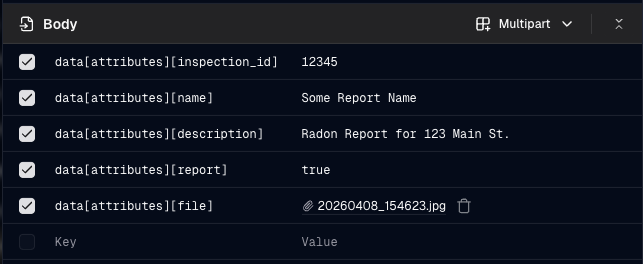
- The call must be sent with content type: multipart. Data must be passed using the key value format data[attributes][fieldname] : value. For the actual file entry, use data[attributes][file].
- Below is an example of how this could look when testing in the dev portal:
Events
Access the events on your company's schedule — radon monitor drop-offs and pickups, plus general calendar events, which may or may not be associated with an inspection. Supports filtering by inspection, inspector, event type, radon device, and start-date range, so you can retrieve a single inspection's event history or your company's schedule activity over a period.
| Method | Endpoint | Description |
|---|---|---|
GET | /v2/events | List events with filtering and sorting |
GET | /v2/events/{id} | Get a single event by ID |
Inspections
Access inspection records including property details, scheduling, participants, and status. This is the core transactional object in the Spectora data model.
View Inspections API Reference →
| Method | Endpoint | Description |
|---|---|---|
GET | /v2/inspections | List inspections with filtering and sorting |
GET | /v2/inspections/{id} | Get a single inspection by ID |
Inspectors
Look up the inspectors on your company's staff, so you can map your own staff records to Spectora inspector IDs, which you'll use when creating inspections. Only your company's inspectors are returned. The list returns every inspector, active and inactive, each with its active flag; pass filter[active]=true to list only active inspectors (active and within your company's paid seats), or filter[active]=false to list only inactive ones. Getting a single inspector returns any of your company's inspectors, including inactive ones (active: false); an ID from another company, or an unknown ID, returns 404.
View Inspectors API Reference →
| Method | Endpoint | Description |
|---|---|---|
GET | /v2/inspectors | List your company's inspectors, optionally filtered by active status |
GET | /v2/inspectors/{id} | Get a single inspector by ID |
Services
Look up the services your company offers, so you can send valid service IDs when you create inspections. Only your company's services are returned. Each service carries its amount, the base price, and its duration, the base duration in hours, both before add-ons, modifiers and discounts. The list returns every service, hidden and visible, each with its hidden flag; pass filter[hidden]=false to list only the services your Online Scheduler shows, or filter[hidden]=true to list only hidden ones. Getting a single service returns any of your company's services, including hidden ones (hidden: true); an ID from another company, or an unknown ID, returns 404.
| Method | Endpoint | Description |
|---|---|---|
GET | /v2/services | List your company's services, optionally filtered by hidden status |
GET | /v2/services/{id} | Get a single service by ID |
Data Model Overview
Understanding how Spectora's data model fits together will help you build more effective integrations.
An Inspection is the central object. Each inspection is associated with one or more Clients (the buyers or homeowners) and one or two Agents (the buying agent and/or selling agent). Agents may belong to Agencies.
Code
The Connection object represents the relationship between an agent and your specific company — the same real estate agent working with multiple inspection companies will have a distinct Connection record at each company, but share a global Agent record.
The Contact object represents the relationship between a client and your specific company — the same client that has employed multiple inspection companies will have a distinct Contact record at each company, but share a global Buyer record.
Get Started
- 1. Obtain your API key here. You will need to have your Spectora login information available or already be logged into Spectora in the same browser.
- 2. Review the Webhook Configuration and set up webhooks to receive event notifications.
- 3. Make a test request to
GET /v2/connectionsto verify authentication and explore your agent data. - 4. Review the API Reference for full endpoint documentation and request/response schemas.
Questions or issues? Reach out to [email protected].